
How to Enable the Uplist Integration in Loansifter
-
Log in to your Loansifter account.
-
From the navigation menu, click Subscriptions.
-
Find Uplist in the list of integration partners and toggle the status to Enabled.
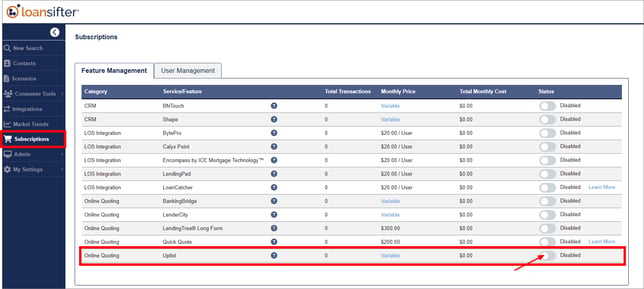
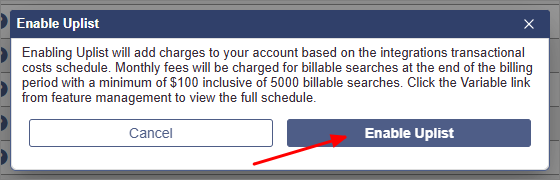
- A dialog window will appear where you can select the Enable Uplist button.
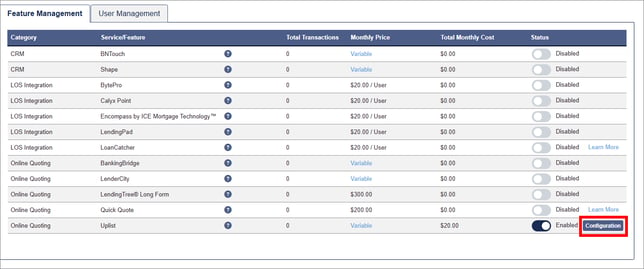
- Then, select the Configuration button in the bottom-left corner of the Feature Management window.
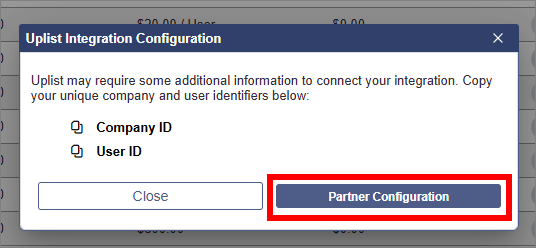
- Another dialog window will appear, prompting you to copy your unique Company and User IDs. For now, you can proceed by selecting Partner Configuration.
Set Up Your Investor Filters
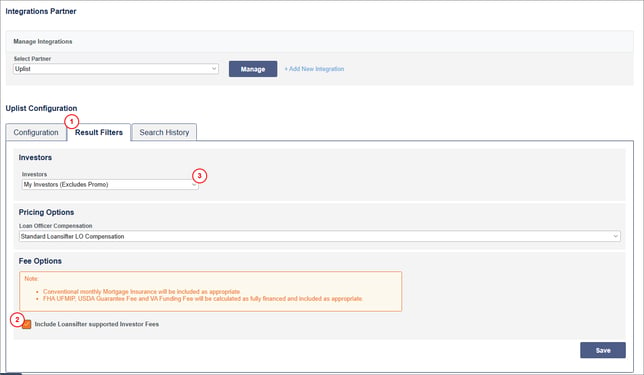
- Click on Result Filters tab.
- Make sure the second checkbox is selected: Include Loansifter supported investor fees.
- From the dropdown, select My Investors, then click Save.
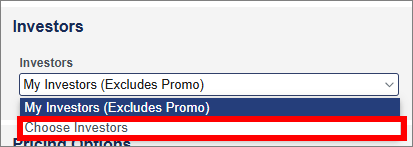
- Then select Choose Investors from the investors dropdown.
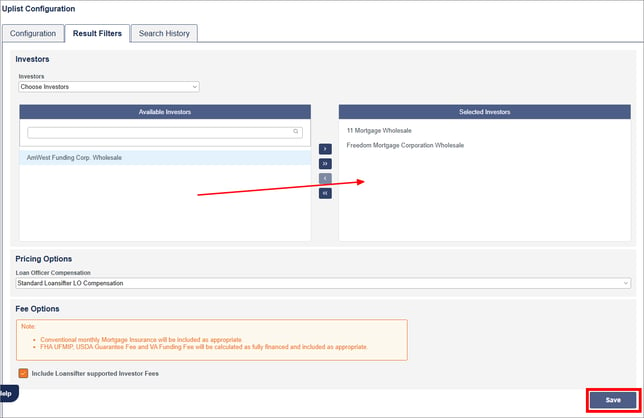
- Select the investors you want Uplist to include in price searches, then click Save.
Final Step
Once these steps are complete, notify your contact at Uplist. They will create your account and send your login information so you can begin using the platform.